|
Ground Motion File Selection Dialog
|   |
|
Ground Motion File Selection Dialog
| |
This dialog is called from the Earthquake dialog by click on the "Read" button. This dialog consists of the generic Windows Open File dialog with additional buttons and options at the bottom (Figure 6). The user then uses the familiar Windows file picking dialog to choose the desired input motion file. It's also possible to type in the file name in a specified box on the ground motion dialog. A name without a path description is assumed to be in the same directory as the Bispec executable file (usually under C:\Program Files\Bispec\).
After the file selection, the user should specify the format of the file. Currently 8 formats are supported.
After one of the formats is chosen, the user can read the record and exit the dialog. The program will give a warning message if the record is not read correctly. However the user should check the number of points read which the program reports to make sure the file was actually read. That's especially the case when the User option is picked.
The Automatic feature is a very convenient tool when the format of the file is not known ahead of time. When chosen, Bispec will attempt to automatically identify the format of the file, and open it.
With the User option, three parameters have to be supplied: Lines to skip, Number of points N, timestep dt, and Units:
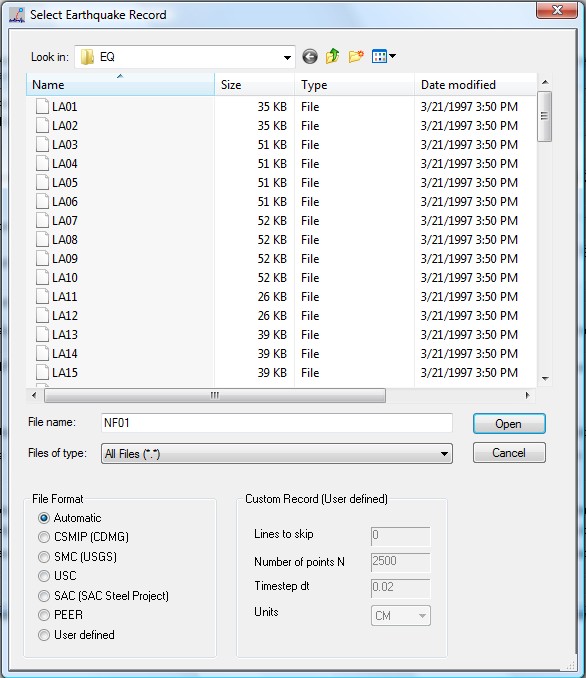
Figure 6: Ground Motion File Selection dialog